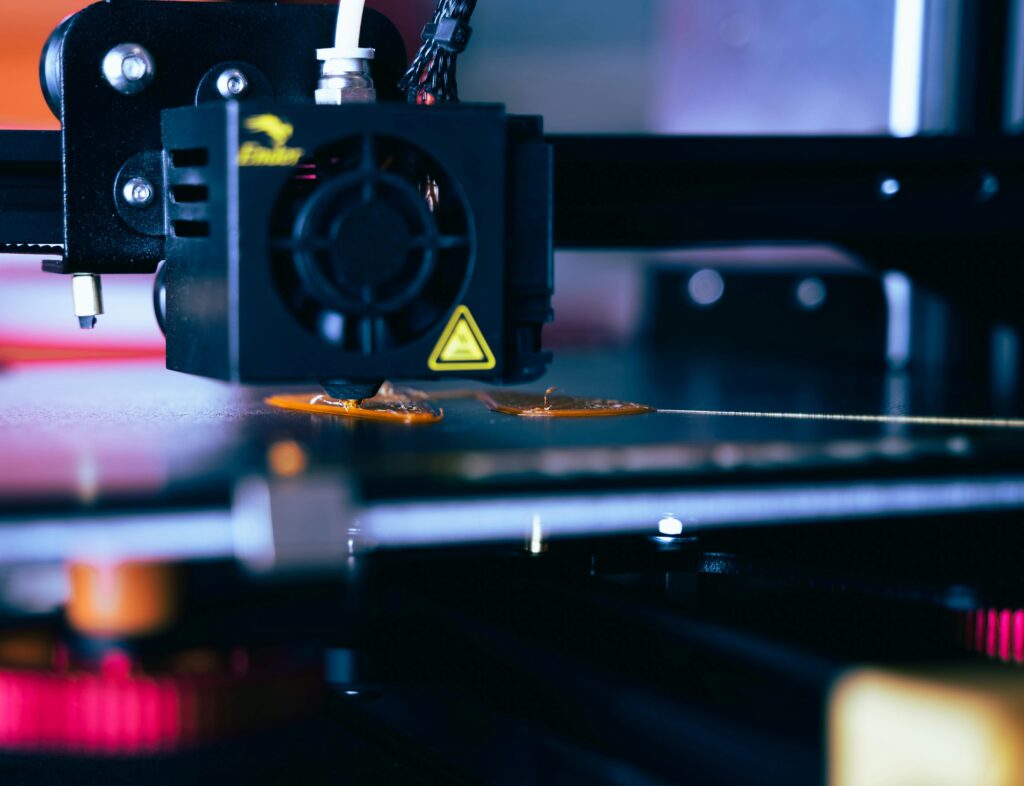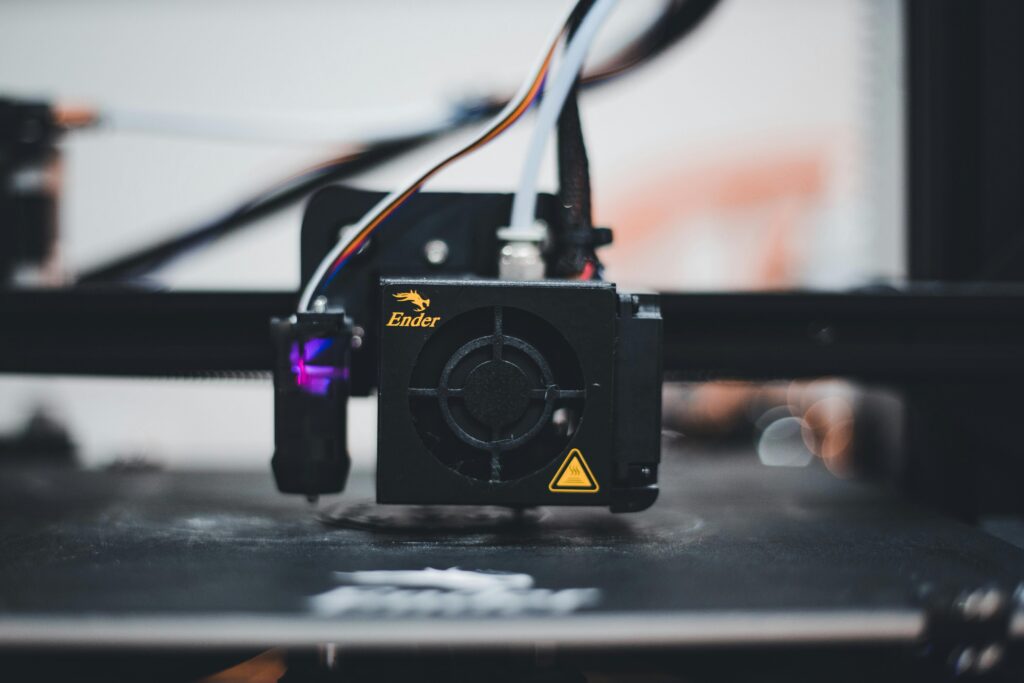

When Your Perfect Print Goes Sideways (Literally)
You’re three hours into what should be your best print yet. The nozzle’s dancing across the bed smoothly. Layers are stacking like butter. Then suddenly, the entire model shifts half a millimeter to the left and never comes back. Your heart sinks. I know that feeling. I’ve been there more times than I’d like to admit, watching thousands of dollars of filament turn into expensive plastic garbage because something went wrong mid-print.
Understanding Why This Happens
The Mechanics of Layer Shifting on Your Printer
The Creality K1 is a solid printer that many makers swear by. But it’s not immune to mechanical failures. When a layer shifts, you’re dealing with a situation where the print head or bed moves unexpectedly during printing. This isn’t a software glitch in most cases. It’s a physical problem. The printer’s stepper motors lose steps, or the movement is blocked somehow, causing the head to slip out of position.
Think of it like driving down the highway and suddenly swerving into another lane. Once that happens, you can’t just magically correct course instantly. The damage is done. The next layer prints on top of misaligned plastic, and everything compounds from there. What started as a tiny mechanical hiccup becomes a ruined print.
Why the K1 Specifically Is Susceptible
I’ve tested dozens of printers over the years, and the K1 has a particular design that can make it vulnerable. The gantry system moves with considerable speed and momentum. When something goes wrong, it goes wrong fast. The printer doesn’t have the same safety margin that some of the higher-end machines feature. That speed is great for print times, but it means there’s less tolerance for mechanical problems.
The acceleration profiles are aggressive. The build plate and X-axis carriage move rapidly to achieve those impressive speed specs. If any component is even slightly out of alignment, the forces involved can cause slipping. I’ve also seen issues specific to certain production runs where the guide rails weren’t perfectly parallel.
Common Culprits Behind the Problem
Mechanical Issues That Steal Your Prints
Your first suspect should be the linear guides and rails. These need to be perfectly smooth and properly lubricated. When I was troubleshooting a K1 that kept shifting, I discovered the Y-axis rail had microscopic debris caught in it. You couldn’t see it without a magnifying glass. But at printing speed, it was enough to cause resistance. The stepper motor couldn’t overcome that resistance, skipped steps, and boom. There’s your shift.
Check the eccentric nuts on the wheels. These are small hardware pieces that keep the carriage wheels pressed against the rails with the right amount of tension. Too tight and they’ll bind. Too loose and the carriage will wobble. The sweet spot is surprisingly narrow. You want the wheel to spin freely but with no play in the carriage itself. I use the « spin test » where I manually turn each wheel by hand after adjusting the eccentric nuts.
Belts deserve attention too. A worn or frayed belt can slip, especially under the stress of rapid acceleration. Look at the timing belt under bright light. If it’s starting to fray at the edges or shows signs of cracking, replacement time is here. This isn’t an expensive fix, but it’s critical.
Electrical and Motor Problems
Stepper motors can fail partially without completely dying. I’ve encountered situations where a motor works fine at slow speeds but loses steps when asked to move quickly. This is often a sign that the motor is failing or the driver circuit is struggling to deliver enough current.
Check your stepper motor connectors. Are they fully seated? A loose connection might not prevent movement, but it can cause intermittent failures that happen mid-print when the printer is under load. I’ve spent hours troubleshooting layer shifting only to find that someone had bumped a connector and partially dislodged it. The connection looked fine at first glance, but it wasn’t fully engaged.
Your printer’s firmware also plays a role. If the acceleration or jerk settings are too aggressive for your mechanical setup, the motors will lose steps. This is especially true if you’ve upgraded or modified your machine. Firmware parameters that work fine at default speeds might cause problems when pushed harder.
Diagnostic Steps to Identify Your Specific Issue
Testing Before You Print Again
Don’t just start another print and hope the problem is gone. That’s how you waste more filament. Instead, do a mechanical inspection first. Move the print head manually by hand to all corners of the build area. It should move smoothly without resistance or grinding noises. Do this slowly and carefully. Feel for any spots where movement becomes difficult.
Jog the printer through its full range using the menu or your connected computer. Use small movements like one millimeter at a time. Watch closely to see if the movement is smooth and if the position display on the printer matches where the head actually is. If there’s slipping happening, this test will often reveal it.
Use a straightedge or laser level to check if your build plate is actually level across the entire surface. A tilted bed won’t cause lateral shifting, but it can cause inconsistent layer heights and other problems that might make it seem like there’s shifting when the real issue is something else.
Monitoring Your Next Print Carefully
When you run your first test print after troubleshooting, don’t just walk away. Babysit it. Watch the first dozen layers. This is when most shifting problems show up. If something’s going to go wrong, it’ll happen early while you can still pause and investigate. I usually print something small during this diagnostic phase. A 30-minute cube tells you a lot more safely than a 12-hour Benchy.
Use the printer’s built-in camera if it has one, or set up your phone to record video. You can review the footage later and see exactly when and how the shift occurred. This information is gold for diagnosing whether it’s an X-axis problem, Y-axis problem, or something else entirely.
Solutions That Actually Work
Quick Fixes You Can Do Right Now
Tighten everything. This sounds basic, but you’d be amazed how many mechanical problems disappear after a complete frame tightening session. Go through every bolt on your printer with the appropriate tool and make sure nothing is loose. Don’t crank with all your strength though. You’re looking for snug, not stripped.
Clean your rails thoroughly. Use a brush or soft cloth to remove dust, dried filament bits, and accumulated debris. Then apply a light machine oil or specialized rail lubricant. Wipe away excess so it doesn’t attract more dirt. This simple maintenance often resolves mysterious shifting issues that have baffled people for weeks.
Check your bed leveling. Even if you leveled it last month, do it again. Material gets warped, components settle, and thermal expansion happens. A proper level takes 10 minutes and could save you from another failed print.
Deeper Repairs for Persistent Problems
If quick fixes don’t work, you might need to replace the timing belt. It’s not difficult, just time consuming. Watch a video guide specific to your model. Make sure you’re routing the belt correctly and that it’s tensioned properly afterward. Too loose and it’ll slip. Too tight and you’ll strain the stepper motor.
Replace the linear bearings or wheels if they’re worn. These components aren’t expensive and they’re usually straightforward to swap out. This is the kind of preventative maintenance that stops problems before they happen. I generally replace wheels every 18 months of heavy use.
If nothing mechanical is obviously wrong, you might need to reduce your acceleration and jerk settings in firmware. This sounds like admitting defeat, but it’s actually smart. A slightly slower print that completes successfully is infinitely better than a faster print that fails halfway through. You can always optimize for speed once you’ve confirmed the machine is mechanically sound.
Practical Prevention Tips
- Establish a maintenance schedule. Check belt tension, clean rails, and tighten fasteners every 20 hours of printing. Mark it on your calendar or set a phone reminder.
- Keep spare parts on hand. A spare timing belt, set of wheels, and stepper motor mean you’re never dead in the water when something fails. These are inexpensive compared to wasted filament.
- Monitor print temperatures. Thermal expansion can throw mechanical tolerances out of whack. Ensure your ambient temperature is stable and your printer isn’t in direct sunlight or near heat sources.
- Use proper print speeds for your material. Just because the printer can run at 150mm/s doesn’t mean you should use it for every print. Start slower with new materials and scale up carefully.
- Verify your slicing settings. Certain profiles can push the printer harder than others. If you’ve imported settings from online sources, test them on smaller prints first.
- Document your fixes. Keep notes about what worked and what didn’t. This creates a reference for future troubleshooting and helps you spot patterns in failures.
- Check connectors regularly. Vibration from printing can gradually loosen connectors. A quick visual inspection once a week catches problems early.
Frequently Asked Questions
Q: Could layer shifting be a software problem with my slicer?
A: Technically yes, but rarely. Bad slicing can cause print failures, but they usually manifest as mesh errors or dimensional inaccuracies, not mid-print shifts. However, if you’re using custom start or end gcode that includes absolute positioning commands, those could potentially cause issues. Review your gcode file if you’ve customized it. That said, 95 percent of shifting problems are mechanical, not software. Start there.
Q: How do I know if it’s the X-axis or Y-axis shifting?
A: This is easier than you’d think. Look at the direction of the shift on your failed print. If the entire model moves horizontally left or right when viewed from